Photo to PS2-style video
How to Make Losercore Videos from a Selfie
Start with a clear face photo, pick a lonely setting and create a 6-second 16:9 MP4 scene with AI-generated sound. Choose Video directly for 10 credits; a separate still then video costs 12 (2 + 10). The trial does not include video. This tutorial follows one example from its input selfie to a still and a moving clip, with the decisions to make before spending credits.
Create a losercore video1. Choose a photo with a clear face
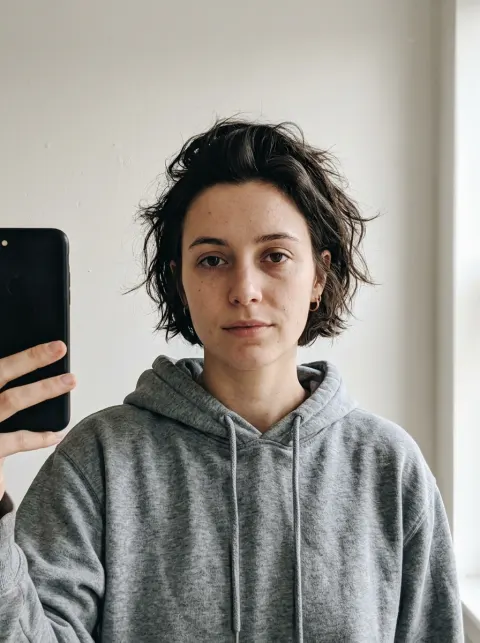
Use one selfie you have permission to upload, with a visible face and even light. JPG, PNG and WebP are supported, up to 10MB. Sign in before uploading it in the generator.
Leave room around your head and shoulders. A face cut off by the source frame, a hand covering your eyes or a heavy beauty filter gives the model less useful detail to preserve. Choose a simple background and one clearly visible person.
The example input is an AI-generated selfie of a fictional adult person. It is not a customer photo. Your result will differ with your own photo.
2. Pick a scene for the moment
All five presets use the same low-poly early-console look. Choose the action and setting you want to see, rather than changing the source photo to imitate a particular character.
- Foggy park
- Standing on a foggy autumn path beside an empty bench, with orange leaves.
- Gas station sunset
- An awkward wave at an empty sunset gas station, with a distant couple hugging.
- 3 a.m. bedroom
- Sitting alone on a bed at night, lit by a monitor, with headphones.
- House party wall
- Standing against the wall at a house party with a red cup while others dance.
- Rainy bus stop
- Sitting at a rainy night bus stop under a flickering street light, hood up.
This example uses the foggy park. For the text behind each setting, explore the five PS2 prompt recipes. The on-site generator uses its preset; it has no custom-prompt box.
3. Choose a still image or a video
Pick Video directly when your goal is a moving scene. Choose Image when a downloadable still is the output you want, or when you want to inspect the general look before paying for a separate video job.
Direct video: 10 credits
One video request includes its own still stage and animates that newly generated image. You do not need to buy an image first.
Separate still, then separate video
These are two separate purchases: 2 + 10 = 12 credits in total. The later video job creates its own still. It is not an upgrade or a way to reuse the previously purchased still.
After you sign in, your first still is free with a watermark: one per account and device, and a daily cap may apply. Video is paid and uses 10 credits. If a free generation fails, that trial use remains spent; no paid credits are charged for the failed trial.
Review the one-time credit packs before submitting a paid request. Repeating a completed generation is a new request, so inspect your result before deciding to make another.
4. Check processing progress
Submit once, then watch the task status. A video first generates its still and then sends that image for animation. Completion time varies with the configured model and provider; there is no fixed wait time. An unconfirmed provider result stays in progress while the service checks it again.
Each clip is 6 seconds with AI-generated sound. If the video model rejects the still, the job fails and a paid video refunds its credits; there is no automatic retry on another model.
A paid task recorded as failed refunds the credits charged for that job. There is no automatic retry on another model. If the provider confirms an unfinished stage is still pending after its 25-minute timeout, it fails on that check and the paid credits are refunded. Unconfirmed acceptance or a result that cannot be confirmed can leave a task in progress beyond 25 minutes; its credits remain deducted. Time passing alone does not cause an automatic refund. If review is needed, contact hi@losercoreai.com about the existing task instead of submitting a duplicate. A failed free still charges no credits, and that trial use stays spent.
5. Review the still and moving result
Check face likeness, hands and the scene before sharing. The look is deliberately low-poly, but the face should remain recognisable. Review the clip through the end for unwanted changes to the person or background. Likeness and motion vary between results.
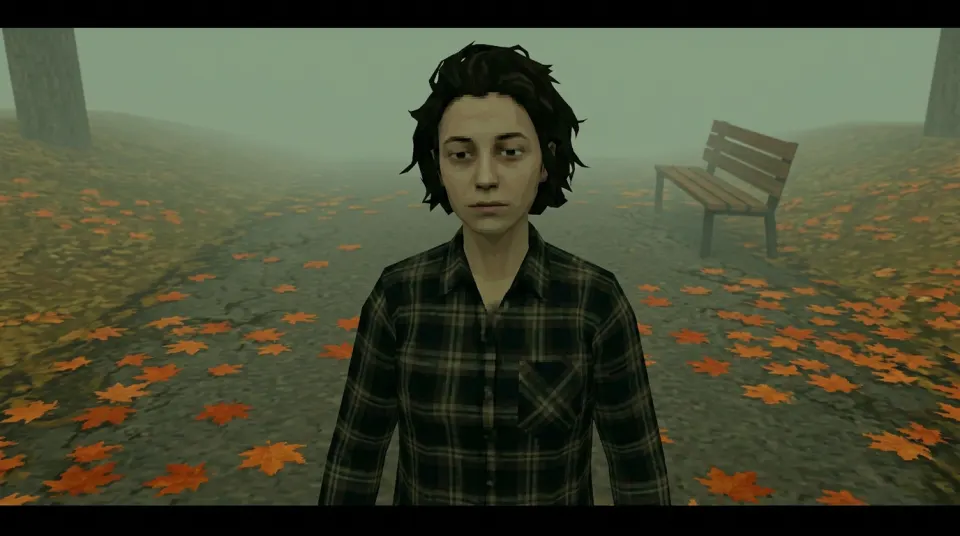
This tutorial pins the foggy park chain (selfie note → still → clip). Compare the gas station sunset and 3 a.m. bedroom clips too on the losercore video examples hub — same fictional demo face, different lonely presets.
How to make losercore videos example clip
Original AI-generated example clip for illustration, not output of our generator; no real people.
6. Download your finished file
Use Download on your completed result to save the original PNG still or MP4 video. The images in this tutorial are public WebP previews; they are not your private generated output. Trial stills retain their watermark.
The still request is landscape 16:9 at 1K. Actual returned pixel dimensions can vary. For example, the original park PNG was 1376×768 pixels before resizing for this page. Review the saved file instead of treating a preview as a resolution guarantee.
Keep a copy on your device before preparing a post. For a square profile picture rather than a clip, the losercore avatar generator can crop a completed paid still locally into a native-resolution PNG.
Troubleshooting before you generate again
- The face is cut off or the composition feels cramped
- Choose a wider source photo with room around the head and shoulders. Keep the face visible and avoid a close crop at the chin or top of the hair. The generator creates a landscape scene, so a tightly framed face gives it less room to work.
- The likeness does not look right
- Try a clearer, evenly lit photo of one person with no heavy filter or face-covering object. Review whether the issue is the source image or the intentional low-poly styling before choosing another paid generation; a different photo can produce a different result.
- Processing looks stuck
- Check the existing task status rather than submitting duplicates. Refresh the page if the view stopped updating. Unconfirmed acceptance or unavailable results may remain unresolved beyond the confirmed-pending timeout, with credits still deducted. If review is needed, contact hi@losercoreai.com about that task before creating another paid generation.
- The download does not open
- Keep the completed result available and try its original download again. Check the browser’s downloads and any blocked download notification. A public example on this page is a demonstration, so do not use it as a replacement for your private result.
Add music and editing after download
The generated clip comes with AI-generated sound, not a song. For a song on TikTok or Reels, add licensed audio yourself after download. Content ID claims or platform restrictions may still apply. Add music you are allowed to use, subtitles or your own narration in an external editor after downloading. The site does not add speech, lip sync or a finished soundtrack. Review any music licence in the app where you plan to publish, and keep a clean copy of your original clip. See the playlist music steps for the sharing workflow.
NPC Challenge / TikTok-style export
For an NPC Challenge or similar short-form post: generate the 6-second 16:9 clip in the losercore AI video generator, download it, add audio you are licensed to use, then crop to vertical yourself in TikTok, Reels or an editor. A before/after pair (selfie vs result) is a useful process check; this page does not publish customer testimonials.
Make a video from your selfieTwo more scenes, two real results
Compare the sunset wave and headphone movement with the park example. These are actual silent demonstrations using a fictional adult, made with an earlier video model; new clips are 6 seconds with sound. See all three losercore video examples with their stills, or choose from five original losercore meme ideas.
Gas station sunset: the awkward wave
The same fictional adult becomes a PS2-style character beside sunset-lit gas pumps. The character gives a small wave while the background couple moves. This is an actual generated scene, before any caption or music edit.
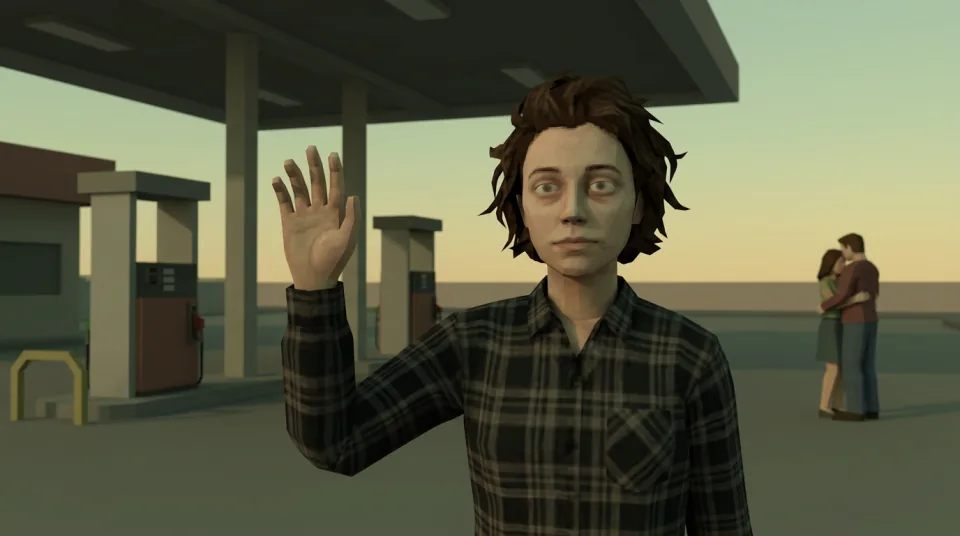
A new video costs 10 credits and creates its own still stage. Results vary; the link selects controls and waits for you to generate.
3 a.m. bedroom: one more song
Monitor light and a cluttered bedroom frame a short headphone movement. The fictional character raises the headphones onto their ears and lowers their head. The clip is silent; hearing a song requires adding licensed audio afterward.
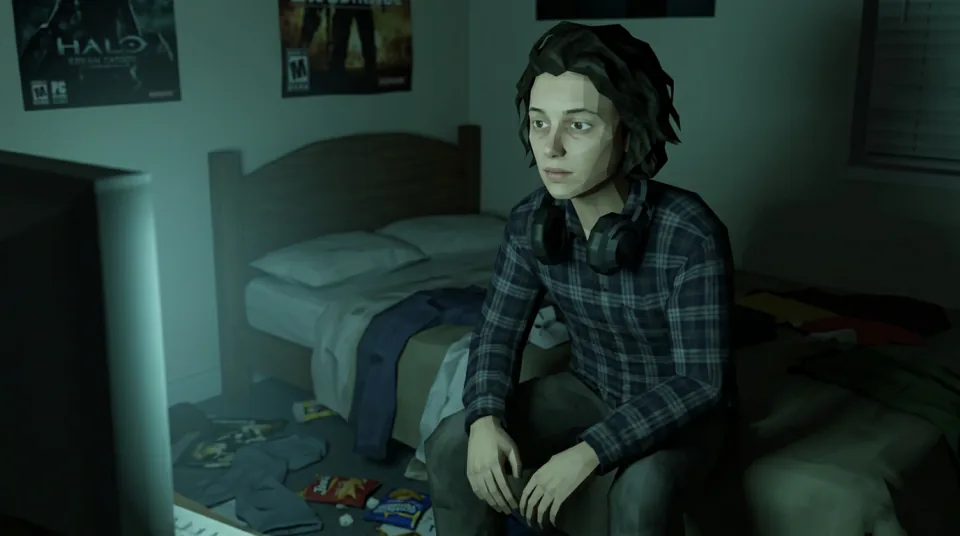
A new video costs 10 credits and creates its own still stage. Results vary; the link selects controls and waits for you to generate.